

Sign Up
Thank you for Submitting!
Inactive Microsoft 365 users quietly drain IT budgets and increase security risk. For many enterprises, it is one of the largest blind spots in their SaaS estate.
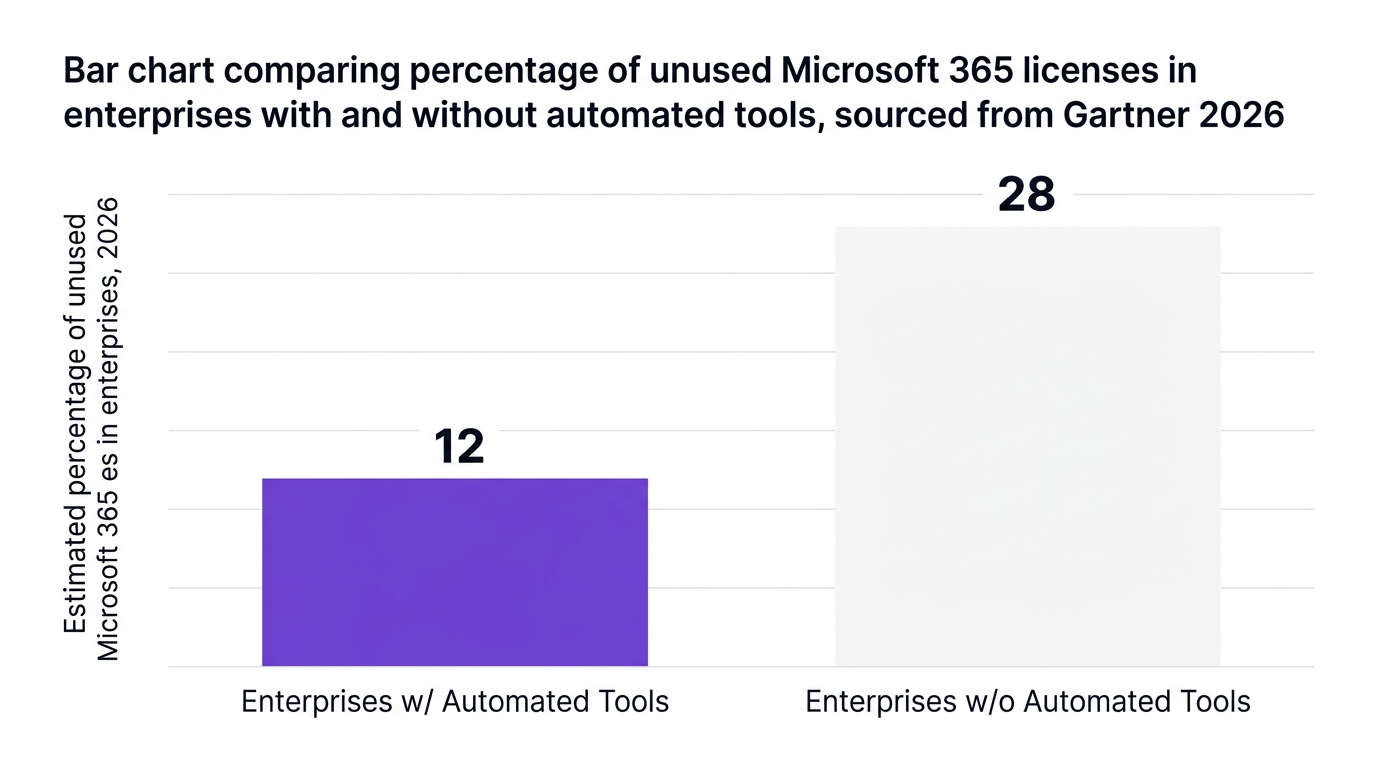
Gartner estimates that 22% of Microsoft 365 licenses in enterprises go unused for at least three months, contributing to more than $4.3 billion in global SaaS wastage annually (Gartner 2026). When you multiply that by E3/E5 unit prices and multi, year contracts, the impact is material for CIOs, IT finance, and SaaS operations teams.
This guide walks through five concrete signals to find inactive Microsoft 365 users, how to connect those insights to license reclamation, and where automation fits in. Along the way, we will show how CloudNuro helps IT and Finance leaders convert those dormant licenses into measurable savings and stronger governance.
For most enterprises, Microsoft 365 is a top three SaaS spend category. Yet 57% of enterprises struggle to accurately track inactive users due to limitations in native reporting tools (Forrester 2026).
That matters for three reasons:
Cost: Unused or low, value licenses inflate OPEX and distort department chargebacks.
Security: Dormant Microsoft 365 accounts, especially orphaned ones, widen the attack surface.
Compliance: Regulations such as SOC 2 and GDPR expect timely removal of unnecessary access.
A key trend is the shift from one, off audits to continuous monitoring. AI, driven license optimization platforms are projected to reach 65% enterprise adoption by year, end 2026 (Gartner 2026), reflecting a move from reactive cleanups to proactive control.
If you are ready to turn dormant Microsoft 365 accounts into savings and control:
Many teams start and stop with the Microsoft 365 login activity report. That is necessary but not sufficient. To reliably identify inactive Microsoft 365 users, you need a broader activity fingerprint that blends sign, in data, engagement, and lifecycle context.
Below are five signals that, combined, provide a defensible basis for reclaiming licenses.
The obvious starting point is last sign, in. Azure AD or Entra ID last sign in and the Microsoft 365 login activity report help you identify users who have not authenticated for a defined period, for example 30, 60, or 90 days.
From an IT finance perspective, a user who has not logged in for 90 days is functionally inactive, regardless of what their department believes. This is the foundation of any effort to identify inactive Microsoft 365 accounts.
Key practices:
Use the Microsoft 365 last sign in report or M365 last login report as baseline.
Flag users with no login for 60+ days as “review” and 90+ days as “candidate for reclaim”.
Align thresholds to your Microsoft 365 inactive account policy, especially for contractors and seasonal workers.
Failure mode: Native reports are often sampled, delayed, or siloed by tenant or region. For large enterprises, this gives a partial view that misses many dormant M365 users.
Login alone does not equal value. A user who logs in once every two months to read a single email but holds an E5 license is not a good investment.
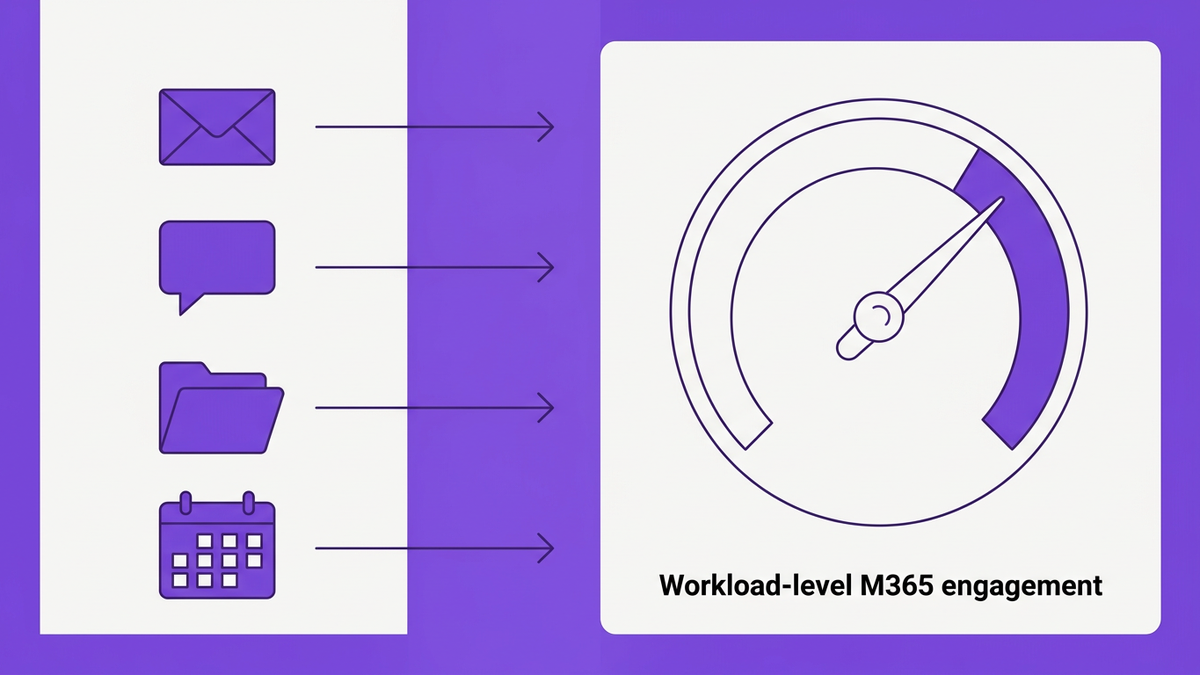
To truly track Microsoft 365 user activity, look at workload, level engagement:
Exchange Online: emails sent/received over the past 30,90 days.
Teams: meetings hosted/joined, chat messages, channels used.
SharePoint/OneDrive: files created, modified, or shared.
Office apps: usage of Word, Excel, PowerPoint, especially desktop activations.
A common pattern is users who authenticate only to satisfy device compliance, but do no meaningful work. These are prime candidates when you report on inactive Microsoft 365 logins and design downgrade or reclaim rules.
Practical rules:
Score each user on a simple engagement index (for example, active in 0, 1, 2, 3+ workloads).
Consider users with logins but zero activity across core workloads for 60,90 days as effectively inactive.
Use this to clean up unused Microsoft 365 licenses by downgrading from premium to base SKUs before full removal.
Activity must be interpreted in context. HR events, job changes, and long, term leave can all explain variations in usage.
This is where SaaS user lifecycle management for M365 becomes critical. Connect your HRIS and identity systems to understand:
New hires who have not yet started but already hold full licenses.
Departed employees whose accounts remain active, sometimes for months.
Internal transfers whose Microsoft 365 usage no longer matches their role.
According to an IDC study, a global healthcare provider reduced orphaned Microsoft 365 licenses by 29% within six months using automated activity analytics aligned with HR data, saving $680,000 annually and improving SOC 2 readiness (IDC Case Study 2026).
Use lifecycle, aware logic to:
Identify users not logging into Microsoft 365 after onboarding, then trigger nudges or auto, downgrade.
Automate deprovisioning M365 users within hours of HR exit events, not weeks.
Run frequent user access audit Microsoft 365 reviews with managers, focused on mismatched roles and premium licenses.
Many IT teams now manage hybrid environments where Microsoft 365 is one of many critical apps. As one SaaS cost optimization leader noted, tracking last, login and engagement across all SaaS apps, not just Microsoft 365, generates the best ROI.
If a user is highly active in another CRM or collaboration tool but barely touches Microsoft 365, that is a signal to remove inactive Microsoft 365 licenses while keeping identity intact.
Cross, SaaS signals help you:
Distinguish true dormant Microsoft 365 accounts from users who shifted to other approved tools.
Prioritize reclamation where Microsoft 365 is redundant but identity must remain for SSO.
Inform IT cost optimization for SaaS discussions with departments, tied to real behavior.
A SaaS trends report in 2026 found that organizations integrating Microsoft 365 analytics into broader SaaS management platforms gained unified dashboards for IT and Finance, enabling more accurate chargebacks and smarter renewals.
Finally, look for users who violate your governance for inactive Microsoft 365 accounts policy.
Red flags include:
Accounts with no recent activity but persistent high, cost licenses.
Users associated with decommissioned cost centers or projects.
Shared or generic accounts with little traceable usage.
Orphaned accounts left behind after M&A or divestitures.
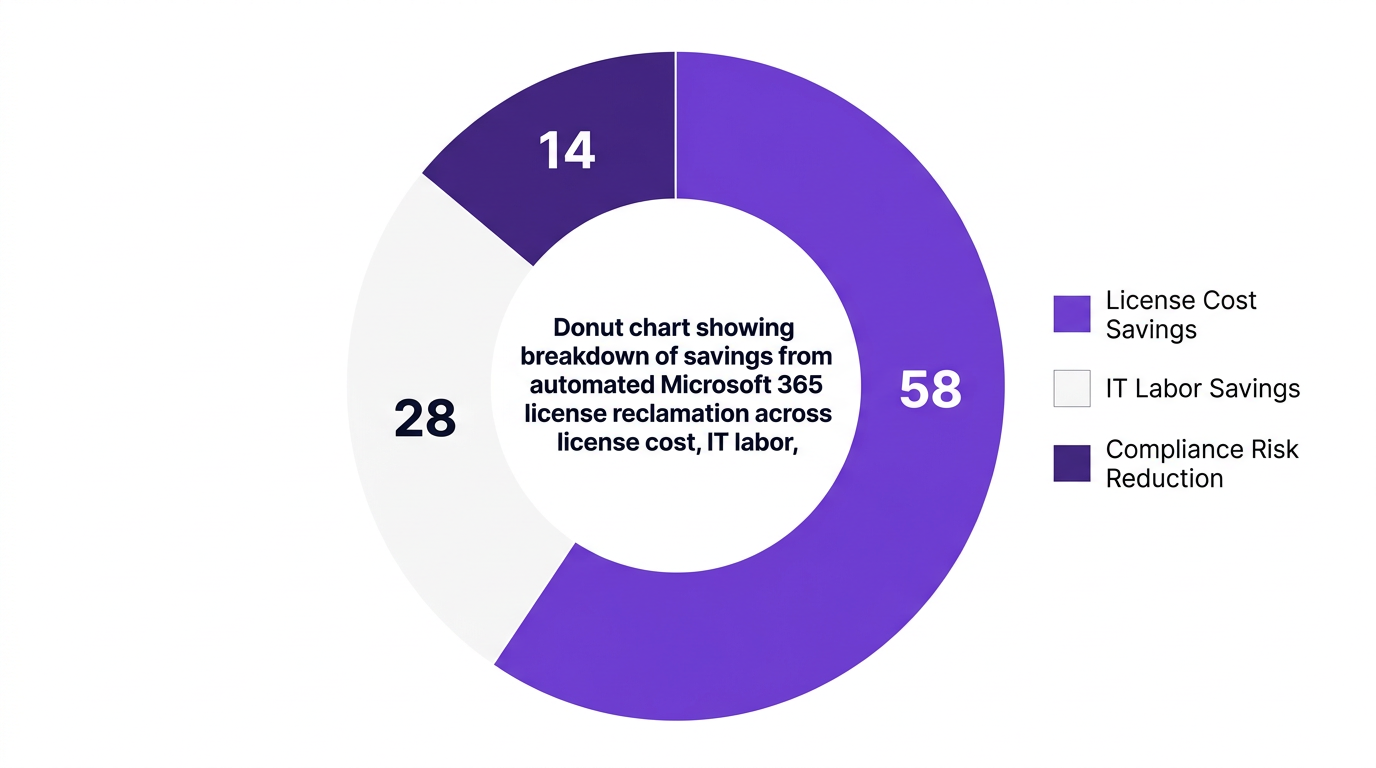
A SaaS benchmark report in 2026 found that companies using AI, powered SaaS governance reduced compliance risk related to orphaned M365 accounts by 48%. The convergence of FinOps and SaaS operations is also driving real, time chargeback models for Microsoft 365 usage, which financially motivates departments to review and remove unused Microsoft 365 licenses regularly.
Before looking at automation, you should fully exploit what is available natively. This creates a baseline and helps build the business case for a SaaS license optimization platform.
Here is a practical workflow to audit Microsoft 365 user activity using available reports.
Start with Azure AD or Entra ID last sign in attributes.
Export the Microsoft 365 login activity report for all users.
Normalize timestamps and filter for users with no login for 30, 60, and 90 days.
Mark those with 90+ days inactivity as “likely inactive Microsoft 365 users”.
Next, open the Microsoft 365 usage analytics for users.
For each user, extract activity for Exchange, Teams, SharePoint, and OneDrive.
Join this with your sign, in export by UPN or object ID.
Highlight users with low or zero activity across all workloads despite having active licenses.
This blended view gives a powerful lens to identify users not logging into Microsoft 365 or using it meaningfully.
To connect this to M365 license cost optimization:
Export current license assignments and SKUs for every user.
Map each SKU to your list price or blended contract rate.
Calculate total cost associated with users flagged as likely inactive.
This creates a concrete Microsoft 365 license optimization story for stakeholders: “We have 1,200 users with no activity in 90 days, representing $X per year in waste.”
Before you remove inactive Microsoft 365 licenses, involve data owners.
Share lists with department heads for validation, especially where legal hold or investigations might apply.
Align timing with your Microsoft 365 inactive account policy and offboarding users from Microsoft 365 procedures.
Document decisions to support audits and demonstrate access governance.
Finally, take controlled action.
For validated inactive users, downgrade or remove licenses in batches.
For leavers, follow your automated user deprovisioning Microsoft 365 or manual runbooks.
Re, run the reports after 30 days to measure savings and refine thresholds.
Counterargument: Some teams argue that manual reviews are “good enough”. However, Forrester research shows manual reviews miss up to 2 in 5 inactive accounts, and IDC finds that automated analytics reduce manual IT time spent on M365 audits by 70%.
Manual export, merge, review cycles work for small environments, but they do not scale. Larger enterprises face:
Tens of thousands of users across multiple tenants or regions.
Complex role, based licensing structures and special SKUs.
Regulatory requirements for timely and auditable access reviews.
According to InfoTech 2026, organizations that implemented automated license reclamation achieved up to 33% savings on annual Microsoft 365 subscription costs. A separate CIO survey reported that 64% of IT leaders cited improved visibility into user activity as the primary driver for deploying third, party license management tools.
Automation adds value in four areas:
Always, on monitoring of Microsoft 365 usage analytics for users, not just quarterly snapshots.
Policy, driven workflows for deprovisioning, downgrade, or review of dormant M365 users.
Integrated HR and identity events so exits trigger immediate action.
Unified SaaS management across 400+ apps, so Microsoft 365 is optimized alongside the rest of your stack.
An analogy many IT leaders use is financial trading. Manual audits are like checking your portfolio once a quarter. Automated, policy, driven tooling is like real, time risk and exposure monitoring that reacts in minutes, not months.
CloudNuro was built specifically for IT, Finance, and compliance teams who need reliable, automated control over inactive Microsoft 365 users.
At the core is Microsoft 365 Custodian, an AI, enabled module of CloudNuro’s SaaS management platform that focuses on discovery, analytics, and automated license governance.
CloudNuro automatically discovers all Microsoft 365 users across your tenants, including guest, contractor, and service accounts.
It then applies rich user activity analytics that go beyond simple last sign in:
Aggregated Microsoft 365 user activity reporting across Exchange, Teams, SharePoint, and OneDrive.
Engagement scoring that combines logins, workload activity, and device usage.
Policy, based tagging of dormant M365 users and risky or orphaned accounts.
This provides an always, up, to, date list to identify inactive Microsoft 365 accounts and gives a far more accurate basis than spreadsheet exports.
CloudNuro turns insight into action with configurable workflows that help you remove inactive Microsoft 365 licenses responsibly.
You can define policies such as:
“If a user has 90+ days of inactivity and no legal hold, downgrade from E5 to E3, then after 30 more days remove license entirely.”
“If the account owner is terminated in HR, run automated user deprovisioning Microsoft 365 within 24 hours.”
“If a user only uses Teams and email, keep base license but remove advanced security add, ons.”
These policies support governance for inactive Microsoft 365 accounts while minimizing disruption. Approvals can be routed to managers or app owners via ITSM tools, and every action is logged for audit.
One of CloudNuro’s differentiators is its unified governance dashboards, which consolidate Microsoft 365 license utilization, last sign in, and compliance indicators across more than 400 SaaS apps.
This allows:
IT asset managers to see Microsoft 365 in the context of broader SaaS management.
FinOps teams to combine Microsoft 365 cost data with other cloud services and apply finops services best practices.
Security and compliance leaders to monitor user access audit Microsoft 365 results alongside other critical apps.
CloudNuro’s AI Custodian helps prioritize which inactive Microsoft 365 users to process first based on cost, risk, and business impact.
A major benefit of CloudNuro is the ability to move from one, time free Microsoft Office 365 assessment style cleanups to an ongoing discipline.
Customers typically follow this pattern:
Run an initial assessment to discover dormant Microsoft 365 accounts and quantify waste, similar to a reduce Microsoft 365 costs initiative.
Use CloudNuro’s Microsoft 365 Custodian to reclaim licenses, align SKUs, and clean up inactive accounts.
Configure standing policies that keep inactive Microsoft 365 users under control automatically.
Over time, this ties directly into broader initiatives like microsoft license optimization and IT asset management strategies.
Use a combination of Azure AD or Entra ID last sign in, the Microsoft 365 login activity report, and workload usage reports across Exchange, Teams, SharePoint, and OneDrive. Filter for users with no sign, in or meaningful activity for 60 to 90 days.
Platforms like CloudNuro automate this by continuously tracking Microsoft 365 user activity and flagging inactive Microsoft 365 users based on policy.
You can use the Microsoft 365 last sign in report and M365 last login report available through Azure AD or Entra ID sign, in logs and Microsoft 365 usage analytics.
These reports give you timestamps for each user’s last authentication. When combined with engagement data, they provide a strong basis to identify users not logging into Microsoft 365 in a meaningful way.
First, run an audit Microsoft 365 user activity across sign, ins and workloads. Next, correlate with HR data to detect leavers and contractors, and then review with business owners.
Once validated, you can clean up unused Microsoft 365 licenses by downgrading high, cost SKUs, then removing licenses and, where appropriate, offboarding users from Microsoft 365 through automated deprovisioning workflows.
Native tools cover basic reporting, but a SaaS license optimization platform such as CloudNuro provides richer analytics, AI, driven signals, and workflow automation.
CloudNuro’s Microsoft 365 Custodian can automatically identify inactive Microsoft 365 accounts, trigger access reviews, and execute policy, driven reclamation, improving IT cost optimization for SaaS and governance.
Regular reviews of inactive Microsoft 365 users reduce costs, shrink the attack surface, and support regulatory expectations around access governance.
Studies show that automated user activity analytics can cut manual IT time spent on Microsoft 365 license audits by 70% and deliver up to 33% savings on subscription costs, while also reducing compliance risk related to orphaned accounts.
Inactive Microsoft 365 users are not just a budgeting nuisance. They represent avoidable spend, avoidable risk, and avoidable audit findings. By combining last sign, in data, workload analytics, lifecycle context, cross, SaaS engagement, and governance signals, you can systematically identify inactive Microsoft 365 accounts and reclaim licenses.
Automation makes this sustainable. AI, enabled platforms now give IT and Finance leaders continuous visibility, policy, driven workflows, and unified dashboards across SaaS, cloud, and AI.
CloudNuro’s Microsoft 365 Custodian was designed to help enterprises find, validate, and reclaim licenses from inactive Microsoft 365 users, while strengthening security and compliance.
If you are ready to turn dormant Microsoft 365 accounts into savings and control:
CloudNuro is a leader in Enterprise SaaS Management Platforms, providing enterprises with unmatched visibility, governance, and cost optimization. Recognized twice in a row in the SaaS Management Platforms category and named a Leader in the SoftwareReviews Data Quadrant, CloudNuro is trusted by global enterprises and government agencies to bring financial discipline to SaaS, cloud, and AI.
Trusted by enterprises such as Konica Minolta and Federal Signal, CloudNuro provides centralized SaaS inventory, license optimization, and renewal management along with advanced cost allocation and chargeback, giving IT and Finance leaders the visibility, control, and cost-conscious culture needed to drive financial discipline.
Request a no cost, no obligation free assessment —just 15 minutes to savings!
Get StartedInactive Microsoft 365 users quietly drain IT budgets and increase security risk. For many enterprises, it is one of the largest blind spots in their SaaS estate.
Gartner estimates that 22% of Microsoft 365 licenses in enterprises go unused for at least three months, contributing to more than $4.3 billion in global SaaS wastage annually (Gartner 2026). When you multiply that by E3/E5 unit prices and multi, year contracts, the impact is material for CIOs, IT finance, and SaaS operations teams.
This guide walks through five concrete signals to find inactive Microsoft 365 users, how to connect those insights to license reclamation, and where automation fits in. Along the way, we will show how CloudNuro helps IT and Finance leaders convert those dormant licenses into measurable savings and stronger governance.
For most enterprises, Microsoft 365 is a top three SaaS spend category. Yet 57% of enterprises struggle to accurately track inactive users due to limitations in native reporting tools (Forrester 2026).
That matters for three reasons:
Cost: Unused or low, value licenses inflate OPEX and distort department chargebacks.
Security: Dormant Microsoft 365 accounts, especially orphaned ones, widen the attack surface.
Compliance: Regulations such as SOC 2 and GDPR expect timely removal of unnecessary access.
A key trend is the shift from one, off audits to continuous monitoring. AI, driven license optimization platforms are projected to reach 65% enterprise adoption by year, end 2026 (Gartner 2026), reflecting a move from reactive cleanups to proactive control.
If you are ready to turn dormant Microsoft 365 accounts into savings and control:
Many teams start and stop with the Microsoft 365 login activity report. That is necessary but not sufficient. To reliably identify inactive Microsoft 365 users, you need a broader activity fingerprint that blends sign, in data, engagement, and lifecycle context.
Below are five signals that, combined, provide a defensible basis for reclaiming licenses.
The obvious starting point is last sign, in. Azure AD or Entra ID last sign in and the Microsoft 365 login activity report help you identify users who have not authenticated for a defined period, for example 30, 60, or 90 days.
From an IT finance perspective, a user who has not logged in for 90 days is functionally inactive, regardless of what their department believes. This is the foundation of any effort to identify inactive Microsoft 365 accounts.
Key practices:
Use the Microsoft 365 last sign in report or M365 last login report as baseline.
Flag users with no login for 60+ days as “review” and 90+ days as “candidate for reclaim”.
Align thresholds to your Microsoft 365 inactive account policy, especially for contractors and seasonal workers.
Failure mode: Native reports are often sampled, delayed, or siloed by tenant or region. For large enterprises, this gives a partial view that misses many dormant M365 users.
Login alone does not equal value. A user who logs in once every two months to read a single email but holds an E5 license is not a good investment.
To truly track Microsoft 365 user activity, look at workload, level engagement:
Exchange Online: emails sent/received over the past 30,90 days.
Teams: meetings hosted/joined, chat messages, channels used.
SharePoint/OneDrive: files created, modified, or shared.
Office apps: usage of Word, Excel, PowerPoint, especially desktop activations.
A common pattern is users who authenticate only to satisfy device compliance, but do no meaningful work. These are prime candidates when you report on inactive Microsoft 365 logins and design downgrade or reclaim rules.
Practical rules:
Score each user on a simple engagement index (for example, active in 0, 1, 2, 3+ workloads).
Consider users with logins but zero activity across core workloads for 60,90 days as effectively inactive.
Use this to clean up unused Microsoft 365 licenses by downgrading from premium to base SKUs before full removal.
Activity must be interpreted in context. HR events, job changes, and long, term leave can all explain variations in usage.
This is where SaaS user lifecycle management for M365 becomes critical. Connect your HRIS and identity systems to understand:
New hires who have not yet started but already hold full licenses.
Departed employees whose accounts remain active, sometimes for months.
Internal transfers whose Microsoft 365 usage no longer matches their role.
According to an IDC study, a global healthcare provider reduced orphaned Microsoft 365 licenses by 29% within six months using automated activity analytics aligned with HR data, saving $680,000 annually and improving SOC 2 readiness (IDC Case Study 2026).
Use lifecycle, aware logic to:
Identify users not logging into Microsoft 365 after onboarding, then trigger nudges or auto, downgrade.
Automate deprovisioning M365 users within hours of HR exit events, not weeks.
Run frequent user access audit Microsoft 365 reviews with managers, focused on mismatched roles and premium licenses.
Many IT teams now manage hybrid environments where Microsoft 365 is one of many critical apps. As one SaaS cost optimization leader noted, tracking last, login and engagement across all SaaS apps, not just Microsoft 365, generates the best ROI.
If a user is highly active in another CRM or collaboration tool but barely touches Microsoft 365, that is a signal to remove inactive Microsoft 365 licenses while keeping identity intact.
Cross, SaaS signals help you:
Distinguish true dormant Microsoft 365 accounts from users who shifted to other approved tools.
Prioritize reclamation where Microsoft 365 is redundant but identity must remain for SSO.
Inform IT cost optimization for SaaS discussions with departments, tied to real behavior.
A SaaS trends report in 2026 found that organizations integrating Microsoft 365 analytics into broader SaaS management platforms gained unified dashboards for IT and Finance, enabling more accurate chargebacks and smarter renewals.
Finally, look for users who violate your governance for inactive Microsoft 365 accounts policy.
Red flags include:
Accounts with no recent activity but persistent high, cost licenses.
Users associated with decommissioned cost centers or projects.
Shared or generic accounts with little traceable usage.
Orphaned accounts left behind after M&A or divestitures.
A SaaS benchmark report in 2026 found that companies using AI, powered SaaS governance reduced compliance risk related to orphaned M365 accounts by 48%. The convergence of FinOps and SaaS operations is also driving real, time chargeback models for Microsoft 365 usage, which financially motivates departments to review and remove unused Microsoft 365 licenses regularly.
Before looking at automation, you should fully exploit what is available natively. This creates a baseline and helps build the business case for a SaaS license optimization platform.
Here is a practical workflow to audit Microsoft 365 user activity using available reports.
Start with Azure AD or Entra ID last sign in attributes.
Export the Microsoft 365 login activity report for all users.
Normalize timestamps and filter for users with no login for 30, 60, and 90 days.
Mark those with 90+ days inactivity as “likely inactive Microsoft 365 users”.
Next, open the Microsoft 365 usage analytics for users.
For each user, extract activity for Exchange, Teams, SharePoint, and OneDrive.
Join this with your sign, in export by UPN or object ID.
Highlight users with low or zero activity across all workloads despite having active licenses.
This blended view gives a powerful lens to identify users not logging into Microsoft 365 or using it meaningfully.
To connect this to M365 license cost optimization:
Export current license assignments and SKUs for every user.
Map each SKU to your list price or blended contract rate.
Calculate total cost associated with users flagged as likely inactive.
This creates a concrete Microsoft 365 license optimization story for stakeholders: “We have 1,200 users with no activity in 90 days, representing $X per year in waste.”
Before you remove inactive Microsoft 365 licenses, involve data owners.
Share lists with department heads for validation, especially where legal hold or investigations might apply.
Align timing with your Microsoft 365 inactive account policy and offboarding users from Microsoft 365 procedures.
Document decisions to support audits and demonstrate access governance.
Finally, take controlled action.
For validated inactive users, downgrade or remove licenses in batches.
For leavers, follow your automated user deprovisioning Microsoft 365 or manual runbooks.
Re, run the reports after 30 days to measure savings and refine thresholds.
Counterargument: Some teams argue that manual reviews are “good enough”. However, Forrester research shows manual reviews miss up to 2 in 5 inactive accounts, and IDC finds that automated analytics reduce manual IT time spent on M365 audits by 70%.
Manual export, merge, review cycles work for small environments, but they do not scale. Larger enterprises face:
Tens of thousands of users across multiple tenants or regions.
Complex role, based licensing structures and special SKUs.
Regulatory requirements for timely and auditable access reviews.
According to InfoTech 2026, organizations that implemented automated license reclamation achieved up to 33% savings on annual Microsoft 365 subscription costs. A separate CIO survey reported that 64% of IT leaders cited improved visibility into user activity as the primary driver for deploying third, party license management tools.
Automation adds value in four areas:
Always, on monitoring of Microsoft 365 usage analytics for users, not just quarterly snapshots.
Policy, driven workflows for deprovisioning, downgrade, or review of dormant M365 users.
Integrated HR and identity events so exits trigger immediate action.
Unified SaaS management across 400+ apps, so Microsoft 365 is optimized alongside the rest of your stack.
An analogy many IT leaders use is financial trading. Manual audits are like checking your portfolio once a quarter. Automated, policy, driven tooling is like real, time risk and exposure monitoring that reacts in minutes, not months.
CloudNuro was built specifically for IT, Finance, and compliance teams who need reliable, automated control over inactive Microsoft 365 users.
At the core is Microsoft 365 Custodian, an AI, enabled module of CloudNuro’s SaaS management platform that focuses on discovery, analytics, and automated license governance.
CloudNuro automatically discovers all Microsoft 365 users across your tenants, including guest, contractor, and service accounts.
It then applies rich user activity analytics that go beyond simple last sign in:
Aggregated Microsoft 365 user activity reporting across Exchange, Teams, SharePoint, and OneDrive.
Engagement scoring that combines logins, workload activity, and device usage.
Policy, based tagging of dormant M365 users and risky or orphaned accounts.
This provides an always, up, to, date list to identify inactive Microsoft 365 accounts and gives a far more accurate basis than spreadsheet exports.
CloudNuro turns insight into action with configurable workflows that help you remove inactive Microsoft 365 licenses responsibly.
You can define policies such as:
“If a user has 90+ days of inactivity and no legal hold, downgrade from E5 to E3, then after 30 more days remove license entirely.”
“If the account owner is terminated in HR, run automated user deprovisioning Microsoft 365 within 24 hours.”
“If a user only uses Teams and email, keep base license but remove advanced security add, ons.”
These policies support governance for inactive Microsoft 365 accounts while minimizing disruption. Approvals can be routed to managers or app owners via ITSM tools, and every action is logged for audit.
One of CloudNuro’s differentiators is its unified governance dashboards, which consolidate Microsoft 365 license utilization, last sign in, and compliance indicators across more than 400 SaaS apps.
This allows:
IT asset managers to see Microsoft 365 in the context of broader SaaS management.
FinOps teams to combine Microsoft 365 cost data with other cloud services and apply finops services best practices.
Security and compliance leaders to monitor user access audit Microsoft 365 results alongside other critical apps.
CloudNuro’s AI Custodian helps prioritize which inactive Microsoft 365 users to process first based on cost, risk, and business impact.
A major benefit of CloudNuro is the ability to move from one, time free Microsoft Office 365 assessment style cleanups to an ongoing discipline.
Customers typically follow this pattern:
Run an initial assessment to discover dormant Microsoft 365 accounts and quantify waste, similar to a reduce Microsoft 365 costs initiative.
Use CloudNuro’s Microsoft 365 Custodian to reclaim licenses, align SKUs, and clean up inactive accounts.
Configure standing policies that keep inactive Microsoft 365 users under control automatically.
Over time, this ties directly into broader initiatives like microsoft license optimization and IT asset management strategies.
Use a combination of Azure AD or Entra ID last sign in, the Microsoft 365 login activity report, and workload usage reports across Exchange, Teams, SharePoint, and OneDrive. Filter for users with no sign, in or meaningful activity for 60 to 90 days.
Platforms like CloudNuro automate this by continuously tracking Microsoft 365 user activity and flagging inactive Microsoft 365 users based on policy.
You can use the Microsoft 365 last sign in report and M365 last login report available through Azure AD or Entra ID sign, in logs and Microsoft 365 usage analytics.
These reports give you timestamps for each user’s last authentication. When combined with engagement data, they provide a strong basis to identify users not logging into Microsoft 365 in a meaningful way.
First, run an audit Microsoft 365 user activity across sign, ins and workloads. Next, correlate with HR data to detect leavers and contractors, and then review with business owners.
Once validated, you can clean up unused Microsoft 365 licenses by downgrading high, cost SKUs, then removing licenses and, where appropriate, offboarding users from Microsoft 365 through automated deprovisioning workflows.
Native tools cover basic reporting, but a SaaS license optimization platform such as CloudNuro provides richer analytics, AI, driven signals, and workflow automation.
CloudNuro’s Microsoft 365 Custodian can automatically identify inactive Microsoft 365 accounts, trigger access reviews, and execute policy, driven reclamation, improving IT cost optimization for SaaS and governance.
Regular reviews of inactive Microsoft 365 users reduce costs, shrink the attack surface, and support regulatory expectations around access governance.
Studies show that automated user activity analytics can cut manual IT time spent on Microsoft 365 license audits by 70% and deliver up to 33% savings on subscription costs, while also reducing compliance risk related to orphaned accounts.
Inactive Microsoft 365 users are not just a budgeting nuisance. They represent avoidable spend, avoidable risk, and avoidable audit findings. By combining last sign, in data, workload analytics, lifecycle context, cross, SaaS engagement, and governance signals, you can systematically identify inactive Microsoft 365 accounts and reclaim licenses.
Automation makes this sustainable. AI, enabled platforms now give IT and Finance leaders continuous visibility, policy, driven workflows, and unified dashboards across SaaS, cloud, and AI.
CloudNuro’s Microsoft 365 Custodian was designed to help enterprises find, validate, and reclaim licenses from inactive Microsoft 365 users, while strengthening security and compliance.
If you are ready to turn dormant Microsoft 365 accounts into savings and control:
CloudNuro is a leader in Enterprise SaaS Management Platforms, providing enterprises with unmatched visibility, governance, and cost optimization. Recognized twice in a row in the SaaS Management Platforms category and named a Leader in the SoftwareReviews Data Quadrant, CloudNuro is trusted by global enterprises and government agencies to bring financial discipline to SaaS, cloud, and AI.
Trusted by enterprises such as Konica Minolta and Federal Signal, CloudNuro provides centralized SaaS inventory, license optimization, and renewal management along with advanced cost allocation and chargeback, giving IT and Finance leaders the visibility, control, and cost-conscious culture needed to drive financial discipline.
Request a no cost, no obligation free assessment - just 15 minutes to savings!
Get StartedWe're offering complimentary ServiceNow license assessments to only 25 enterprises this quarter who want to unlock immediate savings without disrupting operations.
Get Free AssessmentGet Started




CloudNuro Corp
1755 Park St. Suite 207
Naperville, IL 60563
Phone : +1-630-277-9470
Email: info@cloudnuro.com





.webp)

Recognized Leader in SaaS Management Platforms by Info-Tech SoftwareReviews




.svg)